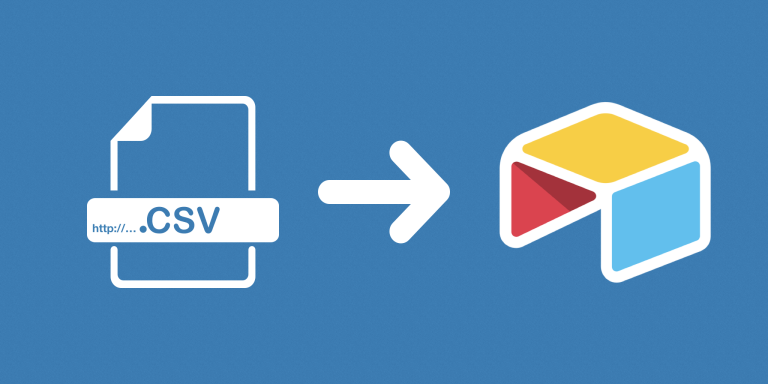
Create or update Airtable records from CSV files already stored in an attachment field with miniExtensions Create Records in Bulk from CSV File. Select the source table and attachment field, choose a target table, and use a unique identifier to match imported rows to destination records.
What you can do
- Read a CSV attachment from a source record.
- Import its rows into another table in the same base.
- Create or update records using a unique identifier.
Source files and destination rows
The source table holds the CSV files, while the Target Table receives the rows inside them. One attached CSV can therefore create or update many destination records. This differs from the public-URL importer, which retrieves its source from a link.
CSV headers must match the destination field names. Include a column for the target table’s unique identifier, such as SKU or Asset ID, so existing records can be recognized reliably. New identifiers create records; matching identifiers update them. Use consistent identifiers in both sources.
Select the source records with a filtered view when only certain import files are ready to process. Review a sample import in the destination table before running a wider batch, then use the available processing and run settings for your recurring workflow.
Examples of useful workflows
Receive a batch of inventory updates
Store an incoming stock CSV on a source record. Use a stable SKU column to update matching stock records and create records for newly introduced products.
Import a list submitted by a customer
Keep a submitted CSV attached to an import-request record. Process its rows into your working table after the file and identifiers have been checked.
Maintain an asset register
Import new and changed equipment entries using Asset ID as the match key. Reusing that identifier helps subsequent files update the same assets.
How to get started
Choose the CSV attachment field, target table, and unique identifier. Match CSV headers to destination fields and test an import before processing more files.
Good to know
The first attachment is processed and must be a CSV. A unique identifier is required; empty cells do not clear existing destination values.