
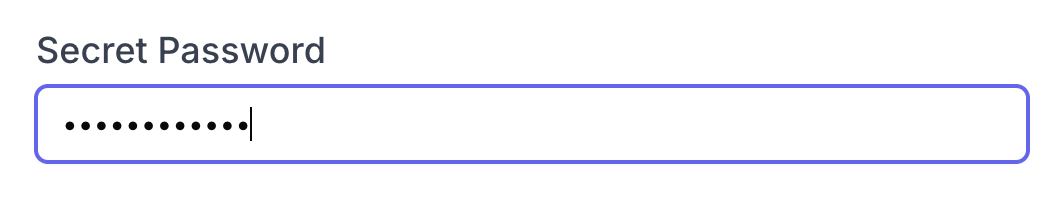
Conceal the characters entered into a single-line text field with password-style masking in the miniExtensions Form. It’s useful on public-facing devices where other people may be able to see the screen.
Use masking at an event check-in kiosk
At a busy event check-in desk, attendees may enter their booking reference on a shared tablet while other people wait nearby. Masking the Booking Reference field keeps its characters concealed during entry, reducing casual visibility to people in the queue.
The original reference is still saved to Airtable for the event team’s workflow. Masking doesn’t validate the booking or grant admission; those checks are separate.
The same approach works at a reception desk, where visitors enter an appointment reference on a public-facing screen.
Important limits
Masking changes the display. It does not encrypt or hash the saved value, add authentication, or change who can access the Airtable record. It also does not conceal values placed in a prefill URL. Keep passwords, API keys and other secrets out of URL parameters.
Getting started
Enable Mask field as password for an editable Single Line Text field and publish your changes. See the password-masking setup guide for the detailed steps.